The quickest way to change the font in WordPress is to add the font under Appearance, Fonts (WordPress 7.0 or later) and then pick it in your theme’s typography settings. Where those settings live depends on the theme, and finding them is the hard part.
How a site lets you change its font says a lot. It can tell you which theme you run, which agency built the site, or whether an AI chat vibe-coded it for you. There is no single method, so this guide goes from the easiest way to the hardest, and describes what to look for at each step. Use it to find the way that fits your site, or to make sense of what is already there, because that is not always well built.
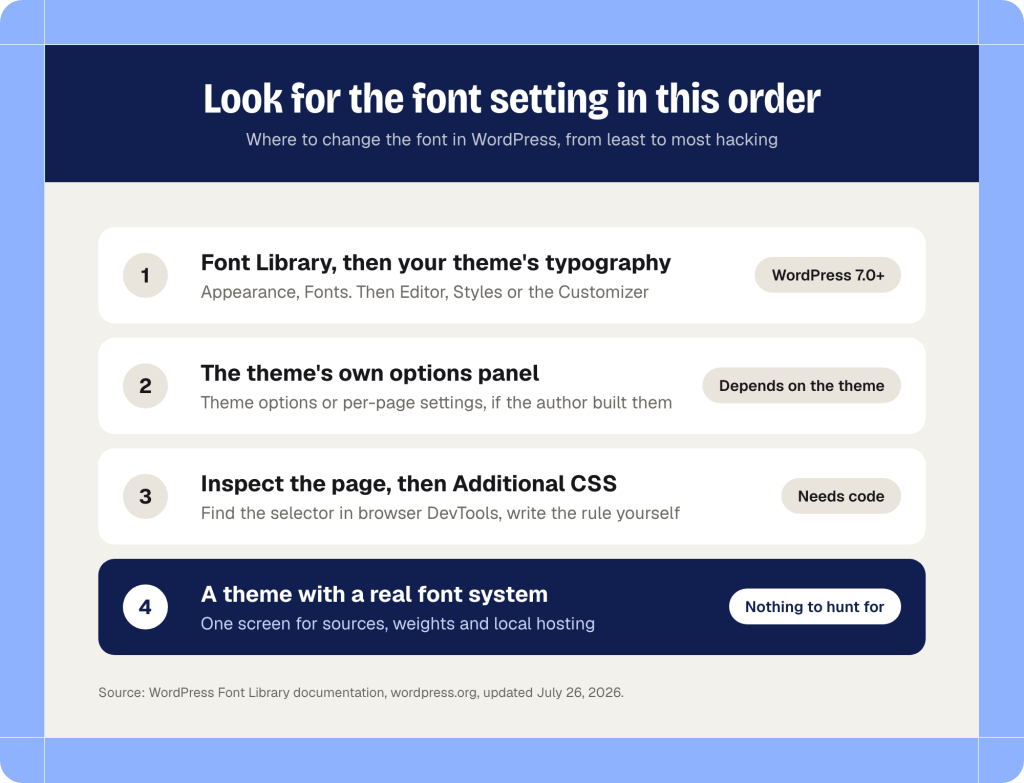
How to change the font in WordPress: four ways
There are four ways to change the font on a WordPress website, and the right one depends on your WordPress version and your theme. The first two need no code, the third needs some, and the fourth is what a theme gives you when its developer planned for fonts from the start.
| Font Library | Theme panel | Custom CSS | Font system | |
|---|---|---|---|---|
| Works with | WordPress 7.0+ | That theme only | Any theme | Specific themes |
| No code needed | Yes | Yes | No | Yes |
| Files hosted on your site | Yes | Varies | If you do it | Yes |
Which WordPress version and theme type do you have?
Check both before you start, because they decide which way applies. The version is on the Dashboard, under Updates. Open the Appearance menu next: a menu item called Editor most likely means a block theme, and a menu item called Customize most likely means a classic or hybrid theme, as the WordPress.org tutorial on theme types explains.
Way 1: the WordPress Font Library and your theme’s typography settings
The Font Library is the most dependable way to add a font in 2026, and it only works on WordPress 7.0 or later. The WordPress 7.0 release page says it now works across all themes, where it used to be limited to block themes.
- Update WordPress to 7.0 or later, then open Appearance, Fonts.
- For a Google font, open the Install Fonts tab and allow access to Google Fonts. Search for the family, choose the variants you need and install it. WordPress downloads the font files and hosts them on your site rather than loading them from Google.
- For your own file, open the Upload tab. It accepts .ttf, .otf, .woff and .woff2, and the documentation reminds you to make sure you have permission to use and distribute the font.
- Apply the font. On a block theme, go to Appearance, Editor, Styles and change the typography there, either for the whole site or for blocks such as Heading and Paragraph.
The upload form is basic, but it is enough for about nine sites out of ten.
Adding a font only makes it available. Nothing on your site changes until a typography setting uses it, and that gap is why so many people add a font and see no difference.
Your theme decides what happens next. A free theme from wordpress.org that is updated regularly and supports the block editor or full site editing is the easy case. Choose the font you installed in the Styles screen and you are done. A hybrid theme that keeps its settings in the Customizer will usually have a typography panel there.
The free directory is the weak spot, though. By my own count, eight in ten free themes on wordpress.org are poor quality. Their authors ship updates without reading the WordPress release notes or adapting to what changed, and keep pulling you back to their own site to install another forty plugins and Elementor. On those themes, a plain font change can need an extra plugin or hand-written CSS, which is what the next ways cover.

Way 2: the theme’s own options panel
Premium themes and themes built for you usually have their own font setting, and a good one is built on the native Font Library from way 1.
More conservative or older themes use the Customizer, or an options panel built on metaboxes, the settings screens that many theme frameworks add. If you cannot find the setting, read the theme documentation before you touch any code.
Be ready for the other case as well. Many authors released their themes back when editing CSS or tweaking code was normal, and some of those themes should have been retired long ago. Their old reputation still sells to thousands of buyers every day. Do not be surprised if you find no font option at all and have to learn what HTML and CSS are just to choose a typeface.
The same thing happens with agencies and freelancers. Some agencies push the view that working with a client directly gives better quality, that a ready-made premium theme is mass market and their own work is a gift from above. I do not share it. An agency has little reason to customize your site once, because it earns from years of revisions, edits and tweaks. So one more way to change the font is an email to whoever built your site. The invoice for that email could have bought a much better solution on Envato, or from a studio like ours that knows what to pick.
Way 3: custom CSS when no setting exists
Custom CSS works on any theme, but you need either an AI chat at hand or the patience to read code and understand it. Adding a font to the library only makes it available in WordPress. If the theme never connects it to its styles, you inspect the site, find the scope of the rule and add Additional CSS until the font is used.
- Right-click the text you want to change and choose Inspect. In the Styles panel (called Rules in Firefox), find the rule that sets font-family and note its selector, or the CSS variable the theme uses for fonts.
- Put your font file on the site. WOFF2 is the format to use, and the web.dev font best practices say to forget the older formats.
- Declare the font and apply it with the selector you found. The example targets the body text.
- Paste the CSS into Additional CSS: in the Customizer on a classic theme, or in the Styles panel of the Site Editor on a block theme.
@font-face {
  font-family: "Your Font";
  src: url("/wp-content/uploads/fonts/your-font.woff2") format("woff2");
  font-weight: 400 700;
  font-display: swap;
}

body {
  font-family: "Your Font", Georgia, serif;
}
The weight range on the second line is right for a variable font file. For static files, declare one @font-face block per weight instead. With font-display: swap, the browser shows the fallback font immediately and switches when yours arrives.
If nothing changes, a more specific theme rule or a CSS variable is winning. Target the selector you saw in step one, or override the variable the theme defines. Also check that the editor and the front end still match, because custom CSS may not reach the editor.
Way 4: a theme with a real font system
A theme that combines the native library with a font system of its own is, in our view, the only approach so far that is correct, native and powerful at once.
Yes, this reads as an ad, because it is our approach. The JKD Toolkit framework under our themes, Verba among them, runs two libraries side by side: the WordPress one and its own Fonts Library. The theme library adds Google Fonts and system fonts, plus Adobe Fonts kits and your own uploads in the Pro edition. It also lets you trim the weights and character sets each family loads, and has a switch that serves the files from your own domain. Fonts can also be listed and added through MCP, so none of it needs coding skills. We have not yet found the same combination in themes from well-known studios, and it is built for all of these cases at once.
- The WordPress library and the theme’s own fonts in one picker
- Weights and character sets you can trim for each family
- A switch that serves the font files from your own domain
- A font applied through a setting, never through code
- A documented place where the setting lives
If your theme has something like this, you are lucky, even if it is not ours. Ours is described in the knowledge base article Adding fonts to your site, and every theme we sell is listed in the themes catalog.
The easiest way to change the font is the one the theme developer built in. Every other way is a workaround.
How to change font color and size in WordPress
On a block theme, change text color and font size in Appearance, Editor, Styles for the whole site, or in the Typography section of a block’s settings for one block. On a classic theme the same two settings are usually in the Customizer or the theme options.
- Whole site: open Appearance, Editor, Styles. The Typography panel sets the font, size and style of text, links, headings and buttons, and the Colors panel sets their color, including the text color under Elements. The Styles documentation lists every panel.
- One block: select the block and open the Block Settings sidebar. The Typography section has the font size, with presets from S to XL and a custom value, and the Color button sets the text color. The typography settings differ a little from block to block.
- Font family for one block is a hidden option: click the three-dot menu of the Typography section and choose Font.
Use rem or em for sizes rather than pixels. The same documentation notes that relative units scale when a visitor raises the default text size in their browser.
If your theme offers neither setting, the CSS from way 3 does it. Replace the selector with the one you found when you inspected the page.
.entry-content p {
  color: #1f2937;
  font-size: 1.125rem;
}
Make the font GDPR ready
If people from Europe visit your site, serve the font from your own domain, or describe in your privacy policy how it is loaded. The WordPress Font Library already helps here: according to the WordPress documentation, it downloads the Google fonts you install and hosts them on your own site.
Be careful with a setup built only around your consent banner. If the font loads only after a visitor accepts, anyone who declines never sees your font, and sees the fallback even before they choose. That is a poor first impression. Self-hosted files avoid the problem, because there is no third-party request to consent to.
The legal background, and what else on a page sends visitor data to third parties, is in a separate post:

Which WordPress fonts to pick, and how many
Two at most: one for headings and one for text, or a single family for both. Every extra font is another file to download, and the web.dev guidance is to request fewer fonts, subset them to the characters you need and use WOFF2. It also notes that system fonts need no download at all, which makes them a good choice for body text.
Self-hosting is mainly a privacy fix. The same guide says it does not clearly win on speed, so confirm the site has a CDN, and give your own files the same optimizations a font provider applies for you. A variable font can replace several static files, but its single file is usually larger, so it pays off when you use many weights.
For readability, keep body text at 16 pixels or larger and avoid thin weights for small type. Then test the pairing on a phone before you decide.
Common questions
Why did my font not change after I added it?
Adding a font to the library only makes it available. Open the typography setting that controls the text you want to change and choose the font there. If you did that and the page still looks the same, clear your page cache, because a cached page keeps pointing at the old font.
Why did my editor font turn into a serif after updating to WordPress 7.0?
Developer Chris Coyier reported this on May 27, 2026: his editor text switched to a default serif, and his guess is that WordPress 7.0 assumes a theme.json file. He fixed it two ways. Add a theme.json file with basic typography settings to the theme, or open the three-dot menu, choose Preferences, then Appearance, and turn off Use theme styles.
How do I add Google Fonts to WordPress?
On WordPress 7.0 or later, open Appearance, Fonts and the Install Fonts tab, allow access to Google Fonts, choose the family and its variants and install it. WordPress downloads the font files and hosts them on your site rather than loading them from Google. Some themes add a Google Fonts picker of their own; use it instead if you want the theme to manage weights and local hosting.
Do I need a plugin to change fonts in WordPress?
Not to add a font: the Font Library does that on WordPress 7.0 or later, and a block theme changes it in Styles. A plugin only matters when an older WordPress or a classic theme leaves you no setting. Compare it with a few lines of custom CSS first, because every plugin is one more thing to keep updated.
Can I upload my own font file?
Yes. On WordPress 7.0 or later, open Appearance, Fonts and use the Upload tab. It accepts .ttf, .otf, .woff and .woff2 files, and you need permission to use and distribute the font. The documentation covers each tab.
Do I need WordPress 7.0 to use the Font Library?
The Font Library arrived in WordPress 6.5, as the core team announcement describes. Until 7.0 it was limited to block themes, and WordPress 7.0 made it available to classic themes too, so you need 7.0 if you run a classic or hybrid theme.
How do I change only the heading font?
On a block theme, open Appearance, Editor, Styles and set the font for the Heading block. On a classic theme, look for a separate heading font control in the Customizer or the theme’s options. If there is none, a CSS rule on h1 to h6 does the same job.
When changing a font is a hunt, look at the site
This may look like a long guide for a simple job. But if you are stuck on changing a font, something has already gone wrong. A modern theme, or a site built from scratch by an agency or a freelancer, should come with clear onboarding, documentation or an MCP and AI mode. Any of them gives you the answer straight away.
Open your theme’s documentation and search for typography. If the answer is not in any of the four places above, ask yourself whether it is time to move to something more reliable.