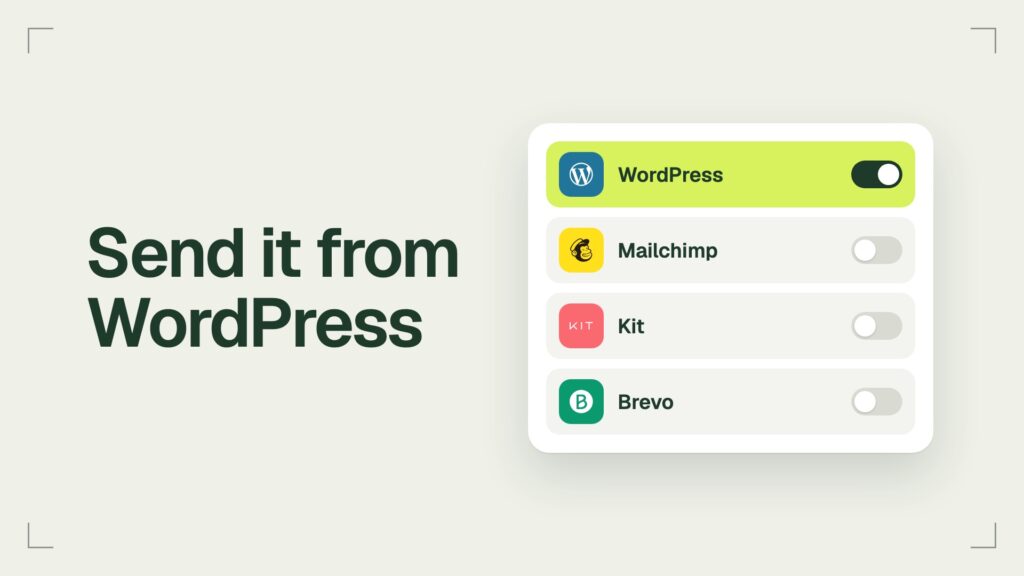

A WordPress newsletter plugin is the piece that puts a signup form on your site, but the form is only one of three parts. Behind it sits a subscriber list, and behind the list sits whatever actually sends the email. Which plugin you pick decides where that list lives and who does the sending, and that choice matters more than any feature on the plugin box.
This is how newsletter signups work through a WordPress site, why the sending side breaks so often, and how we choose the provider and the plugin so neither becomes the weak spot.
- The form
- Collects the address on your site
- The list
- Holds subscribers, in WordPress or at a provider
- The sender
- Your web server, or the provider servers
How does a WordPress newsletter plugin work?
A visitor types an address into a form, the address lands in a list, a confirmation email goes out, and from then on every issue you write is sent to everyone on that list. Every newsletter setup on WordPress follows that path. What differs is where the list is stored and who sends the mail.
There are two models, and every newsletter plugin belongs to one of them:
- The list lives in WordPress. A full newsletter plugin such as MailPoet or The Newsletter Plugin keeps subscribers in your own database, gives you an editor for the issues and sends them from WordPress. You own everything, and you also maintain everything, sending included.
- The list lives at a provider. A connector plugin for Mailchimp, Kit, MailerLite or Brevo only puts the form on your site. The address goes straight to the provider, which stores the audience, confirms it, and sends the issues from its own servers.

| List in WordPress | List at a provider | |
|---|---|---|
| Who keeps the list | Your database | The provider |
| Who sends | Your server | The provider |
| Deliverability | Your job | Their job |
| Site goes down | Sending stops | Sending continues |
| Leaving later | Export the table | Export a CSV |
Neither model is wrong. A small blog that wants the newsletter inside the dashboard can live with the first one. Anything that has to arrive in inboxes reliably, week after week, is easier with the second, because of who does the sending.
Who actually sends the email?
If the list lives in WordPress, WordPress sends the mail, and by default it hands every message to the PHP mail() function on your web server. That is how wp_mail() is written: it builds the message with PHPMailer and switches it to PHP mail unless a plugin replaces the transport. So when mail goes out directly from the site, you need a working SMTP setup or a sending service, or nothing you write reliably reaches anyone.
Three things make the bare server a poor sender:
- The WordPress docs say a true return value from
wp_mail()does not mean the email was received; it only means the request was processed without errors. A form can report success while the message dies later. - Hosts cap and filter it. MailPoet says so on its own plugin page: sending newsletters with your host is not a good idea, because of speed limits and spam folders. Shared hosting also puts you on an IP address you share with strangers.
- Scheduled sends wait for traffic. WP-Cron runs only when someone loads a page. A post notification due at 2 PM on a quiet site can go out hours late, and MailPoet support keeps pointing to the scheduler in threads where nothing seems to send.
The mailbox providers then judge what arrives. Google sender guidelines require every sender to have SPF or DKIM, valid reverse DNS and a reported spam rate below 0.3%. Anyone sending more than 5,000 messages a day to Gmail also needs DMARC and one-click unsubscribe. A web server with no SMTP setup meets none of that on its own.
- Issue stuck
- Check the cron
- Confirmations missing
- Check spam folder
- Nothing arrives
- Authenticate domain
We went through every cause of mail landing in spam, and the SMTP fix itself, in a separate guide:
Do you still need SMTP if Mailchimp sends?
For the newsletter, no: the provider sends the issues from its own servers, and your web server never touches them. For the rest of the site, yes. Password resets, contact form messages and order emails still leave through wp_mail(), so when someone says their WordPress email is not sending, those are usually the messages they mean. One SMTP plugin connected to a sending service covers all of it.
How to choose the newsletter provider
Choose the provider before the plugin, because the provider decides how well your mail is delivered, whether you can take your list with you, and how the price grows with the list. The plugin is just the door to it.
What we check before trusting a provider with a list:
- You can download the whole list as a CSV at any time, with consent dates. If leaving is hard, the list is not really yours.
- The provider walks you through SPF, DKIM and DMARC for your own domain, so issues come from you and not from a shared address.
- You can switch on double opt-in, so every address on the list confirmed itself.
- The provider maintains its own connector, or documents an API that a trusted plugin uses.
- Check how the bill grows with subscribers and sends on the vendor pricing page itself. Free tiers change, so a number in an old listicle tells you nothing today.
Some readers find at this point that they do not want WordPress doing the newsletter at all. If a hosted platform tempts you, read our comparison first, because the trade is the list and the audience you own:

Set up the provider and the plugin correctly
Most newsletter problems on WordPress come from setup. The same few settings decide whether the first issue lands in the inbox, so set them before you announce the list:
- Authenticate your domain with SPF, DKIM and DMARC at the provider. It is the biggest single factor for inbox placement.
- Send from a real address on your own domain, never from a free Gmail or Outlook address.
- Keep double opt-in on. MailPoet support notes that more than 25% of signups staying unconfirmed is normal; those are addresses you did not want anyway.
- Give every issue a one-click unsubscribe and a visible unsubscribe link.
- Put a physical postal address in the footer. US law requires it, and opt-outs must be honored within 10 business days, per the FTC guide to CAN-SPAM.
- Write the consent text next to the checkbox yourself, for the countries your readers live in.
- Let one plugin handle mail. Two plugins hooking the same sending function can break each other’s messages.
- Subscribe with your own address before launch and check the inbox and the spam folder.
The CAN-SPAM rules are in the FTC compliance guide, the note on unconfirmed signups is from MailPoet support, and the mechanics of a confirmed signup are in the Mailchimp article on double opt-in. The plugin side has fewer settings than people expect: connect the API key, pick the list, choose the fields, and stop there.
Official plugin or a third-party one?
Use the provider’s official plugin where one exists, and stay away from unverified third-party solutions. A newsletter plugin holds a list of real people’s email addresses, which is personal data, and it holds the API key to your account. That is exactly what an attacker wants from a cheap, abandoned plugin.
The numbers back the caution. Patchstack counted 11,334 new vulnerabilities in the WordPress ecosystem in 2025, up 42% on the year before. 91% of them were in plugins, and 46% had no fix from the developer by the time they were disclosed. Newsletter plugins are not exempt: CVE-2019-19985 let anyone download user data from sites running the Email Subscribers and Newsletters plugin before version 4.2.3, with no login needed.

Official does not always mean the most installed. On WordPress.org in November 2026, the plugin Mailchimp publishes itself, Mailchimp List Subscribe Form, shows 60,000+ active installs, while MC4WP: Mailchimp for WordPress, built by an independent developer, shows over a million. A third-party plugin like that has earned its trust: a named maintainer, regular updates, years of record. That is what verified means. What you avoid is the rest: a plugin with no history, a nulled copy of a paid one, a form script someone sent you as a zip.
A newsletter plugin is a door to your list. Fit doors only from people you can name.
We wrote about what happens when nobody maintains a plugin anymore:

Why we build the integration into our themes
This is exactly why we build integrations on the studio side: for safety and convenience, so a subscribe form does not need one more plugin from someone you have never heard of. Our Mailchimp integration is the example. It talks to the Mailchimp API directly from the theme, so there is no third-party plugin to install, update or trust.
What it does, from the integration documentation:
- You paste an API key and an Audience ID into Theme Options, under Integrations, then Mailchimp. The key is stored as a password and never shown in plain text again.
- Double opt-in is on by default, so new subscribers stay pending until they confirm.
- Submissions are rate limited to 10 attempts per five minutes from one IP address, which keeps the form from turning into a spam target.
- The form goes into the editor as a Mailchimp Form block, a shortcode, a classic widget or an optional Elementor widget, and every form writes to the same audience.
- The site keeps no copy of the list. Subscribers live in your Mailchimp audience, so removing the integration loses nobody, and the exact error Mailchimp returns goes to the PHP error log, not to your visitors.
The integrations come with a Pro license of our themes. If you run another theme, the official Mailchimp plugin or a well-kept one like MC4WP does the same job; just check it the way the previous section describes.
Questions people ask
Can you run a newsletter on WordPress for free?
Yes. The Newsletter Plugin is free with unlimited subscribers, and MailPoet is free up to 1,000 subscribers with its branding in the emails, according to their WordPress.org pages. In both cases you still need a reliable way to send, which on most hosts means an SMTP service, and that is where a free setup usually starts to cost something.
What is the best email plugin for WordPress?
It depends on the job, because two kinds of plugin share the name. An SMTP plugin such as WP Mail SMTP, FluentSMTP or Post SMTP fixes how WordPress sends its own mail. A newsletter plugin collects subscribers and sends issues. Most sites with a newsletter need one of each, or a newsletter provider plus one SMTP plugin.
Do I need an SMTP plugin if I use Mailchimp?
Not for the newsletter, because Mailchimp sends it. You still want one for the mail WordPress sends itself: password resets, form notifications and order emails.
Why are my WordPress newsletter emails not sending?
Start with three checks: the scheduler (WP-Cron only runs on page loads), the sending queue in the plugin, and domain authentication. If confirmation emails seem to vanish, look in the spam folder first; that is where they usually are.
What to do next
Pick the provider first, using the checklist above. Authenticate your domain with it before you collect a single address. Then connect it with the official plugin, a verified third-party one, or the integration your theme already ships, and sign up with your own address to see the confirmation arrive. Only then put the form in front of readers.